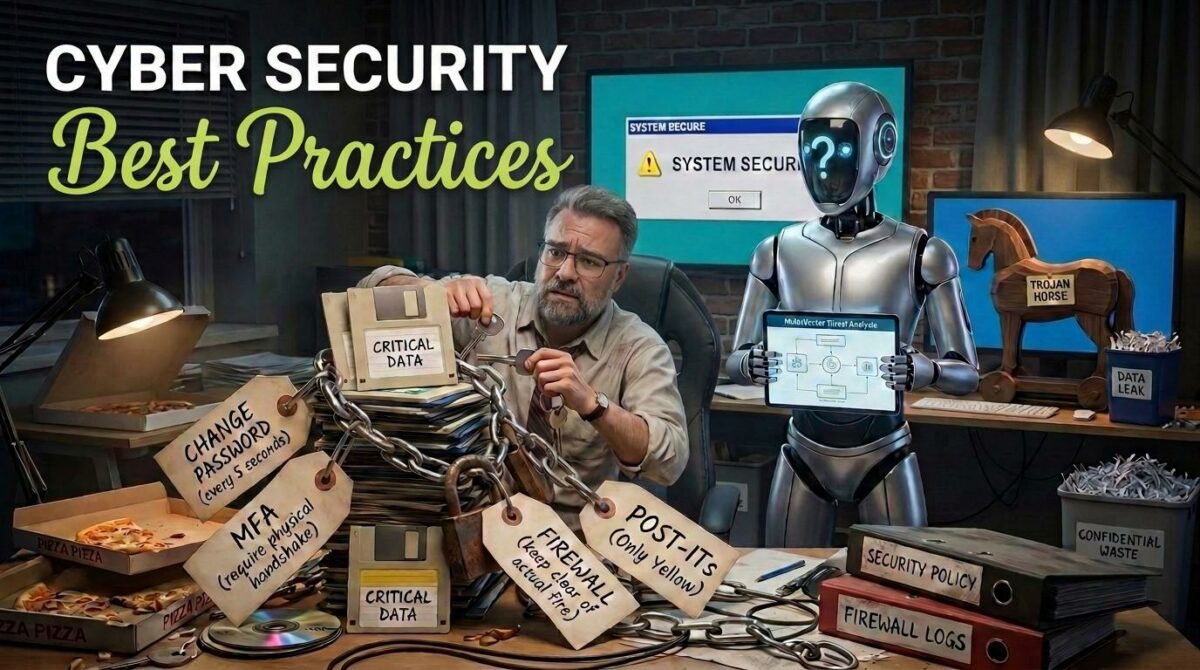
Or: How I Learned to Stop Clicking and Love the Password Manager
Let’s start with an uncomfortable truth: somewhere out there, right now, a man named Kevin is sitting in a room with four monitors, a lukewarm energy drink, and a Google Sheet titled “Targets — Q3.” Kevin is not particularly gifted. Kevin did not graduate top of his class. Kevin, frankly, once forgot his own Wi-Fi password for three days. And yet Kevin is going to get into somebody’s email today, because that somebody used “Password123!” and reused it on four other sites, one of which was breached back in 2019 and nobody ever changed anything.
This is the part where I’m supposed to say “cybercrime is a growing threat” and cite a statistic that makes your stomach drop. Fine — here’s the stomach-drop version: most successful attacks aren’t sophisticated Hollywood hacking with green text scrolling down a black screen. They’re boring. They’re a fake invoice email. They’re a “your package couldn’t be delivered” text. They’re a free USB stick someone left in a parking lot that a curious employee plugged into a work laptop because, hey, free USB stick. The bar is low. Kevin does not need to be a genius. Kevin just needs you to be tired, distracted, or in a hurry — which, statistically, you are, right now, reading this.
The good news: you don’t need to become a cybersecurity expert to stop being an easy target. You just need a handful of habits that turn you from “low-hanging fruit” into “the fruit at the very top of the tree that requires a ladder, a permit, and frankly isn’t worth the effort.” Kevin will move on to someone else. Kevin is, after all, lazy — that’s sort of the whole point of automated attacks.
So let’s talk about the real risks — phishing emails, weak and reused passwords, unpatched software, public Wi-Fi, social engineering, malicious links, oversharing on social media, unsecured home networks, shady downloads, and plain old human error — and then let’s fix them, one slightly-too-detailed metaphor at a time.
1. Phishing Emails: The Nigerian Prince Has Evolved
Once upon a time, phishing was easy to spot. A “prince” needed your help moving $40 million and, weirdly, only you — a random person with a Hotmail account — could be trusted with it. Charming. Obviously fake.
Modern phishing is a different animal. It’s an email from “your bank” with the right logo, the right tone, and a subject line like “Unusual login attempt detected.” It’s an email that appears to come from your own boss, asking you to “quickly” buy gift cards for a client. It’s a fake Microsoft 365 login page that looks pixel-perfect, except the URL is “micros0ft-security-verify.com” and you didn’t notice because you were mid-coffee and mid-panic about a deadline.
The fix: Slow down. Phishing relies entirely on urgency and emotion — fear, curiosity, or “oh no I need to fix this right now.” Before clicking anything, hover over the link (don’t click, just hover) and look at where it actually goes. Check the sender’s real email address, not just the display name. And if an email claims to be your bank, your boss, or your IT department asking for something unusual, verify through a separate channel — call them, message them on Slack, whatever — before you act. A two-minute pause has saved more companies than any antivirus software ever has.
2. Weak Passwords: “123456” Is Not a Personality Trait
Every year, someone publishes a list of the most common passwords, and every year it’s the same greatest hits: “123456,” “password,” “qwerty,” and my personal favorite, “letmein” — which is basically just knocking politely and hoping the door opens.
Here’s the problem with weak passwords: they’re not being guessed by a human typing slowly. They’re being tested by software that can try billions of combinations per second, working through lists of previously breached passwords like a very enthusiastic, very tireless intern. If your password is short, common, or based on your dog’s name (hi, Max), it will be found. It’s not a question of if.
The fix: Use long passphrases instead of short “clever” passwords — something like “PurpleUmbrella!DancingOnTuesday” beats “P@ssw0rd1” every time, both in strength and in how satisfying it is to type. Better yet, stop making them up yourself and use a password manager to generate and store unique, random passwords for every single account. Yes, every single one. The password manager remembers so you don’t have to — which frees up brain space for things that actually matter, like remembering where you left your keys (still working on that one myself).
3. Reusing Passwords: The Domino Effect Nobody Wants
This one deserves its own entry because it’s sneaky. You might have one genuinely strong password… that you use everywhere. Your email, your bank, your gym membership app, that forum you joined in 2014 and forgot existed.
Here’s the issue: that forgotten forum from 2014 almost certainly doesn’t have great security. When it gets breached — and low-priority sites get breached constantly — your email and password combination ends up in a giant database that criminals buy, sell, and trade like baseball cards. Then they try that same combination on Gmail, on banking sites, on everything. This is called “credential stuffing,” and it works embarrassingly often, precisely because so many people reuse passwords.
The fix: Unique passwords, everywhere, no exceptions — this is where a password manager earns its keep twice in one blog post. Also worth doing: check haveibeenpwned.com occasionally to see if your email has shown up in a known breach. It’s oddly satisfying, in a slightly horrifying way, like checking if your name is on a “wanted” poster in an old western.
4. Skipping Multi-Factor Authentication: The Deadbolt You’re Not Using
Multi-factor authentication (MFA) is the security equivalent of a deadbolt on top of your regular door lock. Even if someone picks the first lock — steals or guesses your password — they still can’t get in without the second key, which is usually a code sent to your phone or generated by an app.
And yet so many people skip it because it adds “one extra step.” One extra step! The audacity of security, asking you to tap a notification on your phone. Meanwhile, MFA blocks the overwhelming majority of automated account-takeover attempts, because Kevin doesn’t have your phone.
The fix: Turn on MFA everywhere it’s offered — email, banking, social media, work accounts, all of it. Prefer an authenticator app (like Google Authenticator or Authy) over SMS codes when possible, since text messages can be intercepted through a scam called SIM-swapping. It’s a small habit that makes you dramatically harder to break into, which is really the whole game here.
5. Clicking Unknown Links and Attachments: The Digital Equivalent of Eating Gas Station Sushi
We’ve all done it. An email arrives with an attachment named “INVOICE_URGENT_FINAL_v2.pdf.exe” and something in our lizard brain says “well, it does say urgent.” Or a text message shows up: “Your package is delayed, click here to reschedule delivery,” and you click before your brain catches up with your thumb.
Malicious links and attachments are one of the most common ways malware, ransomware, and spyware get onto devices. They’re designed to look mundane — an invoice, a delivery notice, a shared document — precisely because mundane things don’t trigger suspicion.
The fix: Treat unexpected attachments and links the way you’d treat gas station sushi at 2 a.m.: with deep, immediate suspicion, regardless of how hungry — or curious — you are. If you weren’t expecting a file, don’t open it without verifying the sender first. Watch for file extensions that don’t match what they claim to be (a “PDF” that’s actually a “.exe” is not a PDF, it’s a costume). When in doubt, contact the sender directly through a known channel to confirm they actually sent it.
6. Ignoring Software Updates: “Remind Me Tomorrow” Is a Trap
That little notification — “Update available” — followed immediately by you clicking “Remind me tomorrow” for the ninth consecutive day. I understand. Updates are annoying. They ask you to restart mid-task. They sometimes change a button’s location for no discernible reason.
But here’s the thing: many updates exist specifically to patch security vulnerabilities that have already been discovered — and, crucially, are already known to attackers, who actively scan the internet looking for devices that haven’t been patched yet. Running outdated software is like leaving a spare key under a doormat that criminals already know about, because someone published a map of every doormat with a key under it.
The fix: Turn on automatic updates wherever you can — operating system, browser, apps, everything. If you must delay an update, don’t delay it indefinitely; schedule an actual time to do it, like right before lunch, when procrastination is at its most productive.
7. Public Wi-Fi: Free Coffee Shop Wi-Fi, Less Free Than You Think
Public Wi-Fi at cafes, airports, and hotels feels like a small daily miracle — free internet, no strings attached! Except sometimes there are strings, and the strings are attached to your data. On an open, unsecured network, it’s possible for someone else on that same network to intercept your traffic, especially on sites that aren’t properly encrypted, or through fake “Free Airport WiFi” hotspots set up specifically to lure people in.
The fix: Avoid logging into sensitive accounts (banking, work systems) over public Wi-Fi when you can help it. If you need to use public Wi-Fi regularly, use a reputable VPN, which encrypts your traffic so that even if someone’s snooping, all they see is digital gibberish. Also, double-check the network name with staff before connecting — “Free_Airport_WiFi_5G” sitting right next to “Free_Airport_WiFi” is not a coincidence, it’s a trap.
8. Oversharing on Social Media: The Gift Basket You Didn’t Mean to Send
You post that you’re “finally on that dream vacation in Bali for two weeks!” Cute. Except you’ve also just told every follower — and anyone who can see a public profile — that your house is empty for fourteen days. You post a cheerful “throwback” photo of your childhood home, complete with the street visible in the background. You answer a fun quiz: “What’s your childhood pet’s name + street you grew up on = your stripper name!” — which happens to be the exact combination of security questions your bank uses to verify your identity.
Social engineering attacks often don’t need to hack anything technical at all. They just need you to hand over the pieces, one harmless post at a time.
The fix: Be mindful of what you share and when — post vacation photos after you’re home, not while your house sits empty. Lock down privacy settings so personal details aren’t visible to strangers. And treat those “fun personality quizzes” with the same suspicion as the gas station sushi from earlier: cute premise, questionable motives.
9. Unsecured Home Networks: Your Router Called, It Wants a Password Change
Most people set up their home router once, accept the default settings, and never think about it again — sort of like a smoke detector, except a smoke detector doesn’t come with a factory-default admin password of “admin” that’s printed on a sticker and searchable online in about four seconds.
An unsecured router means anyone nearby could potentially access your network, see your devices, or worse. And with more smart devices in homes than ever — cameras, thermostats, doorbells — a weak router is the front door to your entire digital household.
The fix: Change your router’s default admin username and password immediately. Use WPA3 (or WPA2 if that’s not available) encryption for your Wi-Fi. Rename your network to something that doesn’t identify you (skip “TheSmithFamily_2ndFloor”). And keep router firmware updated, because yes, routers need updates too — they’re just quieter about asking.
10. Human Error: The Vulnerability That Never Gets Patched
Here’s an uncomfortable statistic disguised as a joke: the most common cause of security breaches isn’t sophisticated malware — it’s people. Clicking the wrong thing. Sending sensitive data to the wrong recipient because autocomplete filled in the wrong “John.” Leaving a laptop unlocked and unattended. Using a sticky note as a password manager, stuck helpfully to the monitor for any passerby to admire.
Technology can only protect you so much. At some point, a human has to make a good decision, and humans are — no offense to humans, myself included — the weakest link in almost every security chain ever built.
The fix: Build habits, not just tools. Lock your screen when you step away, even “just for a second.” Double-check the recipient before hitting send on anything sensitive. Use a password manager instead of sticky notes (third mention — I told you it was important). And normalize asking “wait, is this legit?” out loud at work, without embarrassment. The person who asks the “obvious” question before clicking is doing more for security than any firewall.
The “Am I Actually Doing This Safely?” Checklist
Print this out, stick it near your desk, and actually use it — unlike that gym membership from January.
- I use a password manager and have unique passwords for every account
- Multi-factor authentication is turned on for email, banking, and work accounts
- I pause and verify before clicking links or opening attachments I wasn’t expecting
- Automatic updates are enabled on my devices, browser, and key apps
- I avoid logging into sensitive accounts on public Wi-Fi, or I use a VPN when I do
- My social media privacy settings are locked down, and I don’t post real-time location details
- My home router uses a changed default password and WPA2/WPA3 encryption
- I lock my screen every time I step away from my device, no exceptions
- I double-check the recipient and content before sending anything sensitive
- I know how to verify a suspicious message through a separate channel before acting on it
- I’ve checked haveibeenpwned.com (or similar) to see if any of my accounts have been in a breach
If you can check most of these boxes, congratulations: you are now officially more annoying to attack than the person next to you, which, in cybersecurity, is basically the whole strategy. You don’t need to outrun the bear — you just need to not be the slowest one in the group. Stay a little paranoid, stay a little skeptical, and give Kevin someone else’s Tuesday to ruin.