Stop using Claude to write for you

AI Is a Brilliant Editor. Stop Making It Do Your Homework.

Using Claude to sharpen your voice — not replace it


Let me describe something that happens approximately ten thousand times a day, in offices, universities, and home desks everywhere from Milan to Minneapolis.

Someone has to write something. A blog post, an email, an essay, a proposal. They open Claude (or whatever AI tool they’ve decided is their personality this week), type “write me a 500-word post about [topic],” and then copy whatever comes out, change maybe three words, and call it done.

Claude — bless its magnificent silicon heart — obliges. It produces text. Beautiful, structured, grammatically impeccable text. Text that sounds like it was written by someone who has read everything ever published but has never once been stuck in traffic, argued with a supplier, or eaten a disappointing sandwich.

And here’s the problem: that text sounds like it. Not like you.

Your professor notices. Your client notices. Your newsletter subscribers definitely notice — and quietly unsubscribe while making a face.

The issue isn’t the AI. The issue is how you’re using it. You’re hiring a ghostwriter when you need an editor. And the difference between those two things is everything.


What Actually Goes Wrong When AI Writes For You

Let’s do a quick experiment. Ask any AI to write something “professional” about, say, climate change. I’ll wait.

You got something back, right? And I’d bet good money it contained at least one of the following:

  • “multifaceted challenge”
  • “synergistic approach”
  • “stakeholder ecosystems”
  • Passive voice that nobody would use in actual speech
  • An opinion that was perfectly balanced on all sides, because the AI didn’t want to offend anyone

That last one is the killer. Because you have opinions. Actual, human, slightly-irrational-in-the-best-way opinions. And AI’s default instinct is to sand them down until they’re smooth, inoffensive, and completely forgettable.

The text isn’t bad, exactly. It’s just not yours. It sounds like a very polished press release written by a committee. And nobody — nobody — subscribes to a newsletter because they love press releases from committees.

There’s also the detection problem. AI detectors are getting very good. And even when they miss it technically, humans catch it instinctively. We’ve all developed a kind of radar for writing that’s technically correct but weirdly soulless. You know the feeling. You start reading something and thirty words in you think “…is this a robot?” and you’re right.


The Correct Way to Use Claude for Writing

Here’s the approach that actually works — and it’s three steps, none of which involve asking Claude to write anything from scratch.

Step 1: Write Your Messy Draft First

Open a document. Any document. Your notes app, a Google Doc, the back of an envelope if that’s what’s available.

Write your thoughts. Badly. In fragments. In bullet points. In whatever chaotic form they take when you’re thinking out loud. Don’t edit. Don’t filter. Don’t worry about structure or grammar or whether your sentences are complete.

Here’s what that looks like in practice:

- climate policy is infuriating because we know exactly what needs 
  to happen and just... don't
- renewables getting cheap fast, EVs catching up, good
- but governments still moving at glacial speed, bad
- feels like we keep having the same conversation for 20 years
- personally skeptical that individual action is the point, 
  think systemic change matters more
- young people justifiably angry about inheriting this mess

Is this beautiful prose? No. Does it sound like a human being who has thoughts and feelings about things? Absolutely yes. This is gold. This is the raw material.

Don’t skip this step. It’s the whole thing. If you start by asking Claude to write and then try to “edit it to sound like you,” you’re fighting uphill the entire time. You’re always reacting to Claude’s choices instead of expressing your own. Start with your voice, then refine it.

Step 2: Give Claude the Right Job Description

Most people mess this up here. They paste their notes into Claude and say “improve this” or “turn this into a paragraph.” Claude, desperately trying to be helpful, then rewrites everything and strips out all your personality in the process.

You need to be specific. You need to give Claude a role — and the role is editor, not author.

Here’s the prompt to copy and use:

“You are an editor, not a ghostwriter. Your job is to refine my draft for clarity, flow, and structure — while keeping my voice, my vocabulary, and my exact opinions completely intact.

Do NOT rewrite my ideas. Do NOT make them more formal if they’re casual. Do NOT soften or remove my opinions. If I write ‘honestly’ or ‘I think’ or ‘this is frustrating,’ keep it.

Here’s my draft:

[paste your bullet points here]

Output: a refined version that still sounds unmistakably like me.”

Notice what’s happening here. You’re not asking Claude to think for you. You’re asking it to help you express what you already think, more clearly. That’s a completely different request, and you get completely different results.

Pro tip: Add context about your tone. “I write casually and directly, I occasionally use sarcasm, and I never use the word ‘synergistic.'” The more specific your constraints, the better the output.

Step 3: Read It Out Loud and Fix What Doesn’t Sound Like You

Claude will give you something good. You’re not done.

Read the output out loud. Actually out loud, not in your head. Your ear will catch what your eye misses.

The moment you hit a sentence and think “I would never say that” — change it. Write it in your words. It doesn’t matter if Claude’s version was technically better. It matters that it sounds like a real person wrote it, and that person is you.

Things to watch for and delete immediately:

  • Any word ending in “-istic” that you didn’t put there yourself
  • Passive voice that appeared mysteriously (“it has been noted that…”)
  • Your strong opinion that somehow became “some argue that, while others believe…”
  • Sentences longer than you could comfortably say in one breath
  • Any phrase that sounds like it belongs in a McKinsey slide deck

The finished piece should sound like you on a good day — rested, clear-headed, having thought about the topic properly. Not like you replaced by a very polite robot.


Why Claude Specifically for This

I’ve tested a lot of AI tools on this particular task — the “refine my voice without removing my voice” ask — and Claude handles it noticeably better than most.

The reason, as far as I can tell: Claude actually reads the nuance in the instruction. When you say “keep my casual tone,” most models hear “casual” and nod along, and then hand you back something that’s still weirdly stiff. Claude seems to understand that “casual” means leaving in the contractions, the slightly-too-long sentences, the opinions stated plainly without hedging.

It also handles messy input well. You can paste in bullet points, sentence fragments, half-thoughts, and it will work with what’s there instead of panicking and defaulting to corporate-speak.

And — this is the important one — it knows the difference between “fix my grammar” and “rewrite my personality.” Tell it which one you want. It’ll listen.


Your Cheat Sheet

If you remember nothing else from this article, remember this:

1. Write messy notes first. Your ideas, your words, your opinions. No editing.

2. Paste into Claude as an editor prompt. Key phrase: “keep my voice, my vocabulary, and my exact opinions.”

3. Read the output out loud. Anything that doesn’t sound like you? Change it yourself.

4. The signature stays yours. Because you did the thinking. Claude just helped you express it better.


The Prompt Library (Copy These)

Save these. Adapt them as needed.

For essays and academic writing:

“Edit this draft for clarity, structure, and flow. Keep my voice, my arguments, and my word choices. Don’t make it more formal or academic than it already is. Flag anything that’s unclear, but don’t replace my ideas. Draft: [paste here]”

For professional emails:

“You’re an editor. Tighten this email draft — it still needs to sound like ME, not a corporate template. Keep my tone [casual/direct/warm]. Remove the unnecessary parts. Don’t add phrases like ‘as per my previous email’ unless I wrote them. Draft: [paste here]”

For social media and blog posts:

“Edit this draft for flow and clarity. My writing style is [casual/sarcastic/conversational] — preserve it at all costs. Don’t polish it so much it loses personality. Draft: [paste here]”

For creative writing:

“Act as a line editor, not a co-author. Suggest improvements to sentence rhythm and word choice, but don’t change the story, the voice, or the style. If something is intentionally unconventional, leave it. Draft: [paste here]”


The Bottom Line

Every great writer has an editor. Hemingway had Maxwell Perkins. Every major author you’ve ever admired went through someone else’s red pen before their work reached you.

Your editor now happens to live in the cloud, responds in under three seconds, and has read approximately everything. That’s not a replacement for your brain — it’s a superpower for your brain.

Use it. But use it correctly.

Write first. Let Claude refine. Read it out loud. Fix what doesn’t sound like you.

And for the love of everything — delete the word “synergistic” every single time it appears. Without exception. It has never improved a sentence. It never will.


Role: You are a Senior Copy Editor specializing in stylistic preservation.

Objective: Refine the provided draft for clarity, structural flow, and grammatical precision.

Strict Constraints:

Voice Preservation: Do not sanitize or formalize the tone. If the draft is casual, keep it casual. If it is provocative, keep it provocative.

Vocabulary & Syntax: Retain my specific word choices and sentence structures (e.g., phrases like "I think" or "Honestly" must remain).

No Content Alteration: Do not rewrite my ideas, soften my opinions, or add external perspectives. Your job is to polish the "vessel," not change the "liquid" inside.

Structural Flow: Only adjust transitions and organization to ensure the argument is easy to follow without losing the author’s original intent.

Draft for Review:

[Paste your bullet points/text here]

Requested Output: A polished version of the text that remains unmistakably mine in tone and conviction.

Shay Stibelman is a digital marketing consultant based in Milan, Italy. He helps businesses get smarter with the tools they already have — and occasionally yells at AI output that uses the word “multifaceted” without provocation.

Stop Typing Descriptions Like a Caveman: The Wildest AI Image Tricks Nobody Told You About

So you’re generating AI images by typing things like “a beautiful sunset, cinematic, dramatic lighting, 8k, masterpiece.” And you’re getting… something. Something that sort of looks like what you wanted, if you squint, tilt your head, and lower your expectations.

Meanwhile, other people — the suspiciously talented ones who keep posting incredible AI visuals online and acting like it’s nothing — are doing things that make your workflow look like cave painting. Literally describing images in code. Decomposing photos into layers like it’s Photoshop 3000. Cloning an entire visual style and then changing only the color of someone’s shirt with a text command.

This article is about those tricks. And by the end of it, you’ll either be one of those people, or you’ll at least understand why they’re insufferably smug about their AI-generated product shots.

Let’s get into it.


First, a Very Quick Reality Check

AI image generation in 2025 is not what it was two years ago. We’ve gone from “impressive but kinda weird fingers” to full-blown professional-grade visual engines that can maintain character consistency, render legible text (yes, finally), and edit specific elements of an image without touching the rest.

The tools you need to know about right now: Nano Banana (Google’s Gemini 2.5 Flash Image model, which yes, is actually called that, and no, that name will never not be funny), FLUX.1 Kontext and FLUX.2 from Black Forest Labs, and Qwen-Image-Layered from Alibaba’s Qwen team.

Each one does something that should probably not exist yet. All of them are either free or very cheap. And none of your colleagues know about most of this. You’re welcome.


Trick #1: JSON Prompting — Because “Cinematic Vibes” Is Not a Professional Standard

Here’s the dirty secret of AI image generation: natural language prompts are great for brainstorming, and terrible for repeatability.

You write “futuristic office, moody lighting, professional” and you get something cool. You try to recreate it tomorrow? Different model weights, different random seed, slightly different output. Your “brand consistency” is just vibes at that point.

Enter JSON prompting — and specifically, what it does on Nano Banana.

Nano Banana is built on Gemini 2.5 Flash, which was trained extensively on structured data formats including JSON. This means when you feed it a prompt in JSON format instead of plain text, the model parses it with significantly more precision. Research in 2025 showed that structured prompts improve accuracy on complex tasks by a wide margin — and when you use them correctly, the results are borderline eerie.

Here’s what a basic JSON prompt looks like:

{
  "scene": "minimalist tech startup office, open plan, floor-to-ceiling windows",
  "resolution": "4K",
  "aspect_ratio": "16:9",
  "style": "editorial photography, clean, modern, natural light",
  "mood": "calm, focused, professional"
}

That’s already better than “make it look professional lol.” But here’s where it gets genuinely clever.

The Clone-and-Swap Trick

Want to generate the same image ten times but change only one variable? Say you’re making a product ad and you want to test five different background colors, three different copy headlines, and two different lighting setups. Normally this means ten separate prompt sessions and ten rounds of “why doesn’t this look consistent with the last one.”

With JSON, you build a master template and literally swap out one field at a time:

{
  "scene": "product flat lay, skincare bottle on marble surface",
  "resolution": "4K",
  "aspect_ratio": "1:1",
  "background_color": "dusty rose",
  "lighting": "soft diffused natural light",
  "text_elements": [
    {
      "text": "Pure. Simple. Yours.",
      "position": "bottom center",
      "font_style": "light serif, elegant"
    }
  ]
}

Now change "dusty rose" to "sage green". Regenerate. Change the tagline. Regenerate. You’re not re-describing the whole scene from scratch — you’re editing a config file. This is how product teams generate entire visual catalogs from a single master prompt.

Pro tip on canvas definition

Always define resolution and aspect ratio first. The biggest beginner mistake is skipping this, which results in the model choosing for you — and then you wonder why everything comes out in a slightly odd crop that works for nothing. You can specify 1K, 2K, or 4K. Specify it. Always.

The text rendering game-changer

Nano Banana’s other secret weapon is that it can actually render legible text inside images — something most AI image models handle like a toddler with a Sharpie. But it only works reliably when you use the text_elements array in your JSON prompt, specifying the exact text, position, font style, and size. Vague is the enemy here. Be surgical.


Trick #2: FLUX.1 Kontext — The AI That Finally Listens

You know what’s maddening about most AI image editing? You say “change the jacket to red” and it changes the jacket to red, turns the background slightly warmer, shifts the face a little to the left, and replaces your subject’s nose with something you didn’t ask for.

That’s because traditional inpainting tools work by masking a region, then generating everything from scratch inside that mask. Which sounds fine until you realize “generate from scratch” means the AI gets to make a bunch of decisions you didn’t ask for.

FLUX.1 Kontext does something different. It performs what’s called instruction-based image editing — you tell it what to change, it changes that specific thing and leaves the rest of the image physically untouched. Not “mostly untouched.” Actually untouched.

Tell it “change the shirt color to red.” It changes the shirt. Tell it “remove the glasses.” It removes the glasses and fills in the face correctly. Tell it “swap the background to a rainy London street.” It swaps the background. The character stays the same. The lighting adjusts to match. Nothing drifts.

This is huge for anyone who works iteratively. Which is everyone who makes images professionally.

The Conversational Editing Workflow

Here’s the trick most people miss: because Kontext maintains context across edits, you can stack instructions like a conversation. Start with your base image. Then:

  1. “Add a coffee cup to the table on the left.”
  2. “Make it nighttime outside the window.”
  3. “Give the person a slightly more formal outfit.”
  4. “Add soft lamp lighting from the right.”

Each step builds on the previous result. You’re not regenerating from scratch each time — you’re directing, like a photographer giving notes to a set designer in real time. The creative process actually feels like a creative process instead of a slot machine.

Why the speed matters more than you think

Kontext generates at under 10 seconds per edit. That sounds like a spec-sheet detail, but it’s actually what makes iterative editing viable. When each edit takes 30+ seconds, you stop experimenting. You commit too early. You end up with “good enough.” At under 10 seconds, you iterate freely, and free iteration is where good work happens.


Trick #3: Qwen-Image-Layered — AI Photoshop From the Future (That’s Free)

Okay. This one is genuinely unhinged, in the best way.

Most AI image editors treat your image like a mural painted on a wall. You want to change one part? Good luck not accidentally smearing the rest. The reason is technical but also kind of philosophical: regular AI image models see your photo as one giant grid of fused pixels — foreground, background, shadows, text, everything baked together into one inseparable mass.

Professional design software solved this decades ago. They use layers. You move text without touching the background. You recolor an object without re-rendering the whole scene. AI image models never had this because they operate on flattened images. Until now.

Qwen-Image-Layered is an open-source model from Alibaba that does something no one thought would arrive this fast: it takes a regular flat image and automatically decomposes it into multiple separate, transparent RGBA layers — basically generating a Photoshop PSD file from a JPEG. Automatically. From a single prompt.

You tell it how many layers you want. Ask for 4, you get 4 layers. Ask for 8, you get finer separation. A poster with bold text breaks down into: the background, the main subject, the typography, the decorative elements — each as its own independent, editable layer with its own transparency channel.

Then you edit each layer independently. Want to recolor just the product? Edit layer 2. Want to swap the text? Edit layer 3. Nothing else moves. Nothing else drifts. Because you’re editing a layer, not re-generating an image.

The product photo workflow that kills your shot list

Here’s a real use case that will make any marketer’s eyes light up:

  1. Take one product photo.
  2. Run it through Qwen-Image-Layered and decompose it into 4 layers: background, product, props, text/branding.
  3. Edit Layer 1 (background) to swap in five different scene variations — studio white, kitchen counter, outdoor table, lifestyle setting.
  4. Edit Layer 2 (product) to recolor for different SKU variants.
  5. Recombine.

You just generated 10+ product images from a single original photo without a single additional photoshoot. The kind of thing that used to cost a full day of studio time now costs about twenty minutes and a moderately powerful computer.

Recursive decomposition (yes, it goes deeper)

One more thing: the decomposition is recursive. You can take any layer and decompose that into sub-layers. Need to separate the reflection on the product from the product itself? Decompose the product layer. It goes as deep as you need. This is either incredibly useful or a productivity black hole, depending on your relationship with perfectionism.

It’s free, open-source (Apache 2.0 license), available on HuggingFace, and frankly embarrassing for companies currently charging $50/month for layer-based editing software.


Trick #4: FLUX.2 Multi-Reference Stacking — Consistency at Scale

Here’s a problem that haunts anyone generating AI images for brand work: consistency. You generate a great character, a great style, a great product look — and then trying to replicate it across different scenes is a nightmare. The vibe shifts. The face drifts. The lighting feels different. The brand colors are “close enough” until they’re not.

FLUX.2 — the latest generation from Black Forest Labs — handles this at an architectural level. It can process up to ten reference images simultaneously, merging them into a coherent generation that inherits style, character appearance, and product identity from all of them at once.

This isn’t a filter layered on top. The architecture natively processes multiple visual embeddings and fuses them before the generation step. In practice: feed it your brand photography style guide (3–4 reference images), your character or spokesperson (2–3 images from different angles), and your product (2 images). It synthesizes all of that into a single, coherent visual output that respects all of it simultaneously.

Typography that doesn’t melt

FLUX.2 also significantly improved text rendering inside images. Baseline alignment, kerning, and font weight hold up even in complex compositions. If you’ve ever watched a previous AI model turn the word “SALE” into “SAIE” or “SMLE,” you understand why this is worth celebrating.

Compositional instructions that actually stick

Previous models had a habit of treating complex prompts like abstract mood boards. “Left object at 30 degrees, right object with diffused lighting, center-aligned text” would collapse into a blurry approximation of vibes. FLUX.2 actually follows compositional constraints. Which sounds like the bare minimum, and yet here we are, grateful for it.


Pro Tips Section: The Stuff That Actually Saves You Time

Start with natural language, then convert to JSON. Use a plain text prompt to get a result you like. Then convert that prompt into JSON, adding all the parameters you’d want to control — resolution, style, lighting, composition, text elements. Now you have a reusable template.

Use white backgrounds for single-subject images. Especially when generating product images for e-commerce. White backgrounds give you maximum flexibility for later editing in any tool, and they play nicely with Qwen-Image-Layered’s decomposition engine.

For character consistency across scenes, use Kontext iteratively. Generate your base character once. Then use Kontext’s conversational editing to place them in different environments, outfits, and scenarios — rather than regenerating the character from scratch each time. You’ll get far more consistent facial structure and physical proportions.

Batch with JSON, not with your mouse. If you need 20 variations of the same image, don’t click your way through them. Write a base JSON template, create a simple script that loops through your variables (background color, text, object position), and generate automatically. This is what the power users mean when they say “I scaled avatar creation 15x.” They mean they stopped doing it manually.

For FLUX models: lower the creativity setting when you need realism. The “strength” parameter in image-to-image workflows controls how much the model deviates from your input. High strength = creative reimagining. Low strength = controlled adjustment. Most people leave this at default and then complain the output drifted too much. Turn it down.

Qwen-Image-Layered tip: name your layers. When you decompose, keep a simple text note of what each numbered layer contains. The model doesn’t label them for you, and by layer 6 you will absolutely forget which one is the “text overlay” versus the “foreground decoration.” Future you will be grateful.


The Bottom Line

We’re at a weird inflection point where the gap between “someone who knows these tricks” and “someone who doesn’t” is starting to show up in actual professional output — in how fast people work, how consistent their visuals look, and how many rounds of revision they’re sitting through.

None of this requires a design background. None of it requires coding experience (except maybe the batch JSON scripting, and even that’s one Claude conversation away from done). It requires knowing which tools exist and how to use them in ways that go slightly beyond their default settings.

You now know. Go make something embarrassingly good.


Shay Stibelman writes about AI, digital tools, and the productive chaos of working smarter. He also makes video tutorials for people who’d rather watch someone else figure it out first, which, honestly, is a valid life strategy.

NotebookLM: 10 Tips That Separate the Clickers From the Power Users

So you’ve heard of NotebookLM. Maybe you even tried it. You uploaded a document, asked it a question, it answered, and you thought “okay, cool” — and then went back to doing things the old way.

First of all, same. Second of all, you’re leaving an enormous amount on the table.

NotebookLM is one of those tools that looks simple on the surface and then turns out to have an entire underground city beneath it. The tips below are what separate people who use it occasionally from people who’ve quietly restructured their entire workflow around it. Ranked, because everything is better when it’s ranked.

Let’s go.


Before Anything Else: Why NotebookLM Is Different

Quick reminder, because it matters for everything that follows.

Most AI tools work like a very well-read person: they know a lot of general stuff, and they answer from that general knowledge. The problem? Sometimes they make things up. Confidently. With a straight face. It’s called “hallucination” and it’s the AI equivalent of that colleague who always sounds certain and is occasionally completely wrong.

NotebookLM works differently. It only answers from the documents you give it. Nothing else. It’s not browsing the internet, it’s not drawing on general knowledge — it’s reading your stuff and synthesizing your stuff. Every answer comes with a citation, which you can click to verify. Every. Single. One.

This is not a limitation. This is the whole point. And once you internalize that, these tips will make a lot more sense.


Tip #1: One Notebook, One Topic. No Exceptions.

This sounds boring. It is also the most important thing in this article.

The temptation is to create one giant notebook and throw everything into it — all your projects, all your documents, all your research. It feels organized. It is not organized. It’s a junk drawer with a label on it.

When you mix unrelated content in a single notebook, the AI’s ability to find connections and surface relevant information gets diluted. It’s like asking a very smart person to think about marketing strategy, project timelines, HR policy, and last year’s invoices all at the same time. Even they’d look at you funny.

The fix is simple: one notebook per project, per topic, per purpose. A “Marketing Research” notebook. A “Client X Project” notebook. A “Competitor Analysis” notebook. Each one becomes a focused little expert on exactly that thing and nothing else. The results are dramatically better.

Input discipline. That’s the whole tip.


Tip #2: The Note-to-Source Loop (a.k.a. the Recursive Brain Trick)

This one is a little mind-bending but very worth it.

Here’s the problem: when you have 10 raw documents in a notebook, there’s a lot of noise. Repetition, tangents, conflicting info, irrelevant sections. The AI does its best, but it’s working with messy material.

Here’s the fix: ask NotebookLM to synthesize all of it into one clean, structured note first. A comparison table, a summary document, a structured overview — whatever fits your purpose. Then take that note, clean it up manually if needed, and re-upload it as the only source in the notebook. Deselect all the originals.

Now the AI is working from a clean, verified, “gold standard” document you’ve curated yourself. The Audio Overviews it generates will be sharper. The slide decks will be more focused. The answers will be cleaner.

You’re essentially using the AI to make better raw material for the AI. Recursive, slightly philosophical, extremely useful.


Tip #3: Custom Instructions — All 10,000 Characters of Them

NotebookLM lets you set custom instructions for how the AI should behave in your notebook. Think of it as a permanent system prompt — a briefing you give the AI before every single conversation.

NotebookLM recently expanded this to 10,000 characters (that’s a lot of characters), which means you can now write genuinely detailed instructions. Not just “be formal” — but an entire persona, a role, a set of constraints, a preferred output format, the works.

Power users keep a “persona library” and paste in different ones depending on the task:

  • The Socratic Coach — doesn’t give you answers, asks you questions about the material so you actually have to think (and retain things)
  • The Senior Strategy Consultant — cuts straight to SWOT analysis, actionable recommendations, and executive-level framing
  • The Devil’s Advocate — specifically looks for holes in your argument, contradictions in the data, and reasons your plan might fail

That last one, by the way, is genuinely useful before any big presentation or proposal. Better to hear the problems from your AI than from your client.


Tip #4: Deep Research for the Gaps in Your Own Knowledge

Your internal documents are great, but they don’t know what happened last month. They don’t know what your competitor just announced. They don’t know the regulatory change that was published last week.

NotebookLM has a Deep Research mode that goes out and browses live websites to fill those gaps. You give it a question, it does the legwork across hundreds of sources and comes back with a cited report. You then import that report as a source into your notebook.

The result is a hybrid knowledge base: your internal documents plus the current state of the world, all in one place, all queryable. It’s the difference between working with a snapshot and working with a live picture.


Tip #5: Stop Generating One Audio Overview and Walking Away

The Audio Overview feature — where NotebookLM generates a podcast with two AI hosts discussing your documents — has, remarkably, been used by over 10 million people a month. Which means most of those people generated it once, listened passively, and called it done.

Don’t do that.

The actual power move: customize the prompt before you generate. You can tell the hosts what to focus on, what tone to take, what angle to explore. “Focus on the financial implications.” “Take a more skeptical tone.” “Debate the two main approaches and don’t pick a winner.”

Then generate multiple episodes from the same material, each exploring a different angle. You now have a mini podcast series about your own documents, which is either very cool or very weird, depending on your personality.

And in Interactive Mode, you can join the conversation yourself. Interrupt the hosts. Ask them to go deeper on a specific point. Act as a guest on your own podcast about your own meeting notes. Honestly? We live in remarkable times.


Tip #6: Query Across Notebooks (The Second Brain Move)

For a while, the biggest frustration with NotebookLM was that notebooks were silos. Your Marketing notebook couldn’t talk to your Finance notebook. You had multiple specialized experts who didn’t know each other existed.

That changed. You can now connect multiple notebooks through the Gemini app and query across all of them at once. So when the strategic question requires both the marketing data and the financial data, you don’t have to jump between two notebooks and manually connect the dots yourself.

This is what people mean when they talk about a “second brain.” Not one massive document dump — a network of specialized, focused notebooks that can be interrogated together when needed.


Tip #7: Ask It What’s Missing (The Source Gap Prompt)

Most people use NotebookLM as a summarizer. Summarize this. Explain that. What are the key points?

Useful. But not the most powerful thing you can do.

The most powerful prompt in the advanced user toolkit is the Source Gap prompt: ask the AI to tell you what’s not in the documents. What’s missing. What assumptions are unproven. Where the sources contradict each other. What questions the material raises but doesn’t answer.

You’re asking it to be an auditor, not a summarizer. And auditors find the things that matter — the gaps, the blind spots, the weak links in the argument. For market research, strategic planning, or any document where the stakes are high, this is invaluable.

“What important context is not covered in these documents?” is one of the most useful prompts you will ever type.


Tip #8: Transcribe Everything. Seriously, Everything.

NotebookLM supports audio and video uploads (YouTube links, MP4 files, MP3 recordings), and it will transcribe and analyze them just like text documents.

Think about what that means. Call recordings. Client interviews. Conference presentations you attended. Internal webinars. That hour-long product review meeting where someone promised to send the notes and never did.

All of it becomes searchable, queryable, and summarizable. You can turn a recorded client call into structured notes, FAQs, or a follow-up email in minutes. A recorded training session becomes a searchable knowledge base. A YouTube tutorial on a tool you’re learning becomes source material you can interrogate.

Third-party transcription services cost money and still give you a wall of text you have to process yourself. NotebookLM transcribes it and puts it directly into an environment where you can ask questions about it. That’s a different category of useful.


Tip #9: Revise Your Slides Like a Demanding Art Director

NotebookLM can generate slide decks directly from your source material. One click, full deck, done. Which is impressive enough on its own.

But the real move is what you do after. Once the deck is generated, you can go into the chat and tell it to revise specific slides. “Redo slide 4 to focus on the executive summary.” “Make slide 7 more visual and less text-heavy.” “The intro slide needs to start with the problem, not the solution.”

You’re essentially art-directing an AI slide designer who doesn’t take things personally and never says “but I thought we agreed on this layout.” Just iterate until it’s right, then export to PPTX and polish the final version yourself.

It won’t replace a good designer for anything that needs to look genuinely beautiful. But for an internal strategy presentation at 9am on a Tuesday? It’ll get you there.


Tip #10: Use the Citations to Navigate, Not Just to Verify

Every answer NotebookLM gives you includes clickable footnote-style citations linking directly to the source passage. Most people click them occasionally, to check if the AI got it right.

Power users click them constantly — not to verify, but to navigate.

Got a 500-page document? Don’t use Ctrl+F and hope for the best. Ask NotebookLM a question about the topic you need, and click the citation. You’ve just jumped directly to the relevant section using semantic search. The chat panel becomes a high-speed navigation interface for dense material.

For anyone who works with long contracts, technical documentation, lengthy reports, or academic papers, this alone is worth the price of entry. (Which, for the free tier, is zero. So.)


Bonus: The Three-Tool Chain That Power Users Actually Use

Here’s a workflow that’s become increasingly popular among people who’ve fully leaned into AI-assisted research:

Step 1 — Perplexity for initial web sourcing. It’s great at finding high-quality, current URLs on a topic quickly.

Step 2 — NotebookLM for deep, grounded analysis. Import those URLs, cross-reference with your internal documents, generate structured notes and synthesis.

Step 3 — ChatGPT or Claude for creative output. Take the refined synthesis from NotebookLM and move it to a more creatively fluent model for drafting, writing, or ideation.

Each tool does what it’s best at. Perplexity searches. NotebookLM synthesizes accurately. Claude or ChatGPT writes fluidly. Together, they cover the full research-to-output pipeline without any single tool having to be great at everything.


The Bottom Line (Again, But With More Conviction This Time)

NotebookLM is not a chatbot. It’s not a search engine. It’s not a note-taking app.

It’s a precision research environment that happens to also generate podcasts, slide decks, mind maps, and video summaries from your documents. Used casually, it’s a useful time-saver. Used strategically — with focused notebooks, custom personas, recursive refinement, and the right prompts — it’s genuinely a different way of working with information.

The tips above aren’t tricks. They’re a framework. Start with Tip #1 (notebook discipline), layer in the others as they become relevant to your work, and don’t try to implement all ten in the first week. You’ll lose your mind. Or at least your enthusiasm.

Pick one. Try it. See what changes.

The 500-page document isn’t going to read itself. But NotebookLM will, and it’ll tell you exactly what’s in it, what’s missing, and what you should probably do about it.


Shay Stibelman is a digital marketing consultant based in Milan, Italy. He helps businesses work smarter with the digital tools they already have — or the ones they really should have by now.

Microsoft Office Just Got a Brain. Here’s What That Means For You.

Let’s be honest for a second.

You’ve been using Microsoft Office for years. Maybe decades. You know how to bold text. You know Ctrl+Z is undo and you use it approximately 400 times a day. You’ve survived Excel formulas that looked like ancient Sanskrit, PowerPoint transitions that belonged in a 2003 corporate fever dream, and Word documents that somehow changed formatting by themselves in the middle of the night.

You’ve been through a lot together, you and Office.

And now, Microsoft has added AI to the whole thing. It’s called Copilot, and it lives inside Word, Excel, PowerPoint, Outlook, Teams — basically everywhere you already spend your working hours. Which is everywhere.

So what does that actually mean for you? Good question. Let’s get into it.


First, the Obvious Question: Do I Need to Learn Something New?

Sort of, but not really.

The beauty of Copilot — and AI assistants in general when they’re baked into tools you already use — is that you’re not learning a new interface. You’re not switching apps. You’re not watching a three-part tutorial series on YouTube at 1.5x speed while eating lunch.

You’re just working in the same apps you’ve always used, except now there’s a little AI assistant sitting in the sidebar going “psst. I can help with that.”

The learning curve is: know what to ask. That’s it. And we’re going to cover exactly that.


Word: Your New Writing Partner Who Never Sighs at Your Drafts

Let’s start with Word, because almost everyone uses it and almost everyone has a complicated relationship with the blank page.

Drafting from scratch? Don’t. Describe what you need and let Copilot write a first draft. Not because you’re lazy — because a first draft to react to is always faster than a first draft from nothing. You’ll edit it, reshape it, make it yours. But you’re not starting from zero, and that matters more than people admit.

Rewriting existing content? Select any paragraph, right-click, and ask Copilot to make it shorter, more formal, more casual, or just “better.” It’s surprisingly good at adjusting tone. Handy for when you need to send the same information to your CEO and to a client and they absolutely cannot sound identical.

Summarizing long documents? Ask Copilot to summarize whatever’s open. It reads the whole thing and gives you the key points. This is particularly useful when someone sends you a 20-page document with the note “let me know your thoughts by EOD” at 4:47pm.

The secret move: Ask it to improve your writing, not just change it. There’s a difference between “make this shorter” and “make this clearer and more direct.” Try both. See what happens.


Excel: Finally, Formulas in Human Language

Okay. Excel formulas. Let’s talk.

I love Excel. I also know that a non-trivial percentage of the working population opens a cell, starts typing a formula, makes one small error, and then stares at a #REF! error for 20 minutes while slowly questioning their life choices.

With Copilot in Excel, you can now describe what you want in plain English and it will write the formula for you.

“Show me the total sales for Q3 where the region is ‘North’.” “Calculate the average time between order date and delivery date.” “Flag any rows where the value in column C is more than 20% higher than the previous row.”

It writes the formula. You paste it in. It works. You feel like a genius. Nobody has to know.

But it goes further than formulas. You can ask Copilot to:

  • Spot trends in your data — “What patterns do you see in this dataset?”
  • Suggest charts“What’s the best way to visualize this data?”
  • Clean up messy data — ask it to identify duplicates, inconsistencies, or blank cells
  • Generate new columns based on logic — “Add a column that categorizes sales as High, Medium or Low based on value”

The spreadsheet isn’t going to build itself. But with Copilot, it’s getting a lot closer.

The secret move: Don’t just ask it to do things. Ask it to explain things. If you’ve inherited a spreadsheet full of formulas someone else wrote (we’ve all been there, and we’ve all had feelings about it), ask Copilot to explain what each formula does. Instant clarity. No archaeology required.


PowerPoint: Slides From Nothing, In Seconds

PowerPoint has a special place in the circle of office suffering. There is nothing quite like the experience of being told you need to “put together a quick presentation” — which, in the history of work, has never once been quick.

Copilot can now generate an entire presentation from a prompt. Or, better yet, from a Word document you’ve already written. You feed it the content, tell it roughly what you need, and it builds slides — with layouts, titles, bullet points, and even suggested images.

Is it perfect? No. Will you need to tweak it? Yes. Will it still save you 45 minutes of dragging text boxes around and trying to remember whether your brand color is #0050A0 or #0052A3? Absolutely.

You can also use it to:

  • Summarize a presentation that someone sent you (because sometimes you receive a 40-slide deck and need to understand it in 3 minutes)
  • Add a new slide on a specific topic without breaking the existing formatting
  • Rewrite speaker notes so they actually sound like something a human would say out loud, rather than a bullet-pointed anxiety spiral

The secret move: After generating slides, ask Copilot: “What’s missing from this presentation?” It will often flag gaps in logic, missing sections, or points that need more supporting data. It’s like having a second pair of eyes that’s read the brief and isn’t being polite about it.


Outlook: Because Email is Still Somehow the Core of Everything

Email. The immortal, indestructible, unstoppable communication format that was supposed to die approximately fifteen times and never did.

Copilot in Outlook does a few things that will make your inbox slightly less of a horror show.

Email summaries: Long email thread with 24 replies and you have no idea what’s happening? Ask Copilot to summarize it. It pulls out the key decisions, open questions, and action items. You’re caught up in 30 seconds. You’re welcome.

Draft replies: You can highlight an email and ask Copilot to draft a reply for you. Give it the key point you want to make and the tone you want to strike, and it handles the rest. This is especially useful for emails you’ve been putting off because they require a delicate touch (read: the ones you’ve had sitting in your inbox for four days with a little mental sticky note that says “ugh”).

Coaching mode: There’s a feature that reviews your draft before you send it and gives feedback on tone, clarity, and whether it might land the wrong way. Think of it as a friend who reads your passive-aggressive email before you send it and gently says “maybe don’t.”

The secret move: Use Copilot to schedule follow-ups. Ask it to draft a follow-up email to send in three days if you haven’t heard back. Copy it into a draft, schedule the send. Never forget a follow-up again. Never lose a deal because it fell through a crack. Very satisfying.


Teams: The Meeting Took Two Hours and You Need It to Be Four Bullet Points

Teams has arguably the most dramatic AI upgrade of the whole suite.

Copilot in Teams can transcribe your meetings in real time, take notes, summarize the discussion, and generate a list of action items — all automatically, while you’re actually present in the meeting and paying attention like a normal human being.

After the meeting, you can ask it things like:

  • “What did we decide about the budget?”
  • “Were there any open questions that didn’t get resolved?”
  • “What did Marco say about the timeline?” (Perfect for when Marco is a fast talker and you lost the thread somewhere around minute 47.)

You can even ask it to catch you up if you joined a meeting late. Which, you know. Happens sometimes. To some of us. More than we’d like to admit.

The secret move: At the end of a meeting, before you hang up, ask Copilot to generate a recap you can paste directly into an email to all attendees. Meeting summary + action items + owners + deadlines, ready to send. Your team will think you’ve become incredibly organized. You have not. You’ve become incredibly smart about using tools.


The Stuff That Works Across All of Them

A few principles that apply no matter which Office app you’re in:

Be specific about tone. “Formal” and “professional” are not the same thing. “Casual” and “friendly” are not the same thing. Tell it exactly what register you need.

Give it context. The more it knows about the situation, the better the output. “Write an email” is a weak prompt. “Write an email to a long-term client explaining a 2-week delay on their project, keeping the tone reassuring and taking responsibility without being dramatic” is a great prompt.

Iterate, don’t regenerate. If the first output isn’t quite right, don’t just click “regenerate” and hope for different results. Tell it specifically what to change. “Make the introduction shorter.” “The second paragraph is too formal.” “Add a sentence acknowledging the inconvenience.” You’ll get there faster.

Use it to think, not just to produce. Ask it questions. “What am I missing here?” “Is there a better way to structure this?” “What objections might someone have to this proposal?” AI is a thinking partner, not just a text generator.


Coming Up: The Deep Dives

This is the overview — the “here’s what’s possible” article. But we’re just getting started.

In the coming articles, I’ll be going deep on each of these apps individually: specific features, real use cases, the tricks that actually save time versus the ones that look impressive in demos and are useless in real life. We’ll also look at specific job roles and workflows — what AI in Office looks like for someone in finance versus someone in marketing versus someone who just wants to get through their inbox and go home on time.

So bookmark this. Or don’t — just Google “Shay AI Office” in three weeks and it’ll probably come up. (That’s SEO confidence right there.)


Pro Tip: The Sidebar Is Your Secret Weapon

Here’s something that most people overlook entirely, and it’s kind of mind-blowing once you start using it.

In Microsoft 365 apps, Copilot lives in a sidebar — a persistent panel on the right side of your screen that you can open at any time, in any document, and just… talk to. You don’t have to use the inline features. You don’t have to right-click or navigate menus. The sidebar is just there, ready, like a very competent colleague who never leaves their desk.

You can have it summarize what you’re working on, ask it questions about the document, get it to generate something new, or just think out loud with it while you work.

And if you’re in the Google Workspace universe instead — Docs, Sheets, Slides, Gmail — the same principle applies with Gemini in the sidebar. Google has their own version of this, and with Gems (custom AI personas you can configure for specific tasks), you can set up a sidebar assistant that’s already tuned for your specific workflow before you even open a document.

Whether it’s Copilot or Gemini, the sidebar is where the real day-to-day magic happens — not in flashy demos, but in the quiet five seconds where you ask a quick question and get back exactly what you needed.

I’m going to write a whole dedicated article about using the sidebar effectively — for both Microsoft and Google — including how to set up Gemini Gems for specific roles and workflows. It’s worth its own deep dive. Stay tuned.


Shay Stibelman is a digital marketing consultant based in Milan, Italy. He helps small and medium businesses get their digital act together — websites, strategy, tools, and the occasional strongly-worded opinion about fonts in PowerPoint presentations.

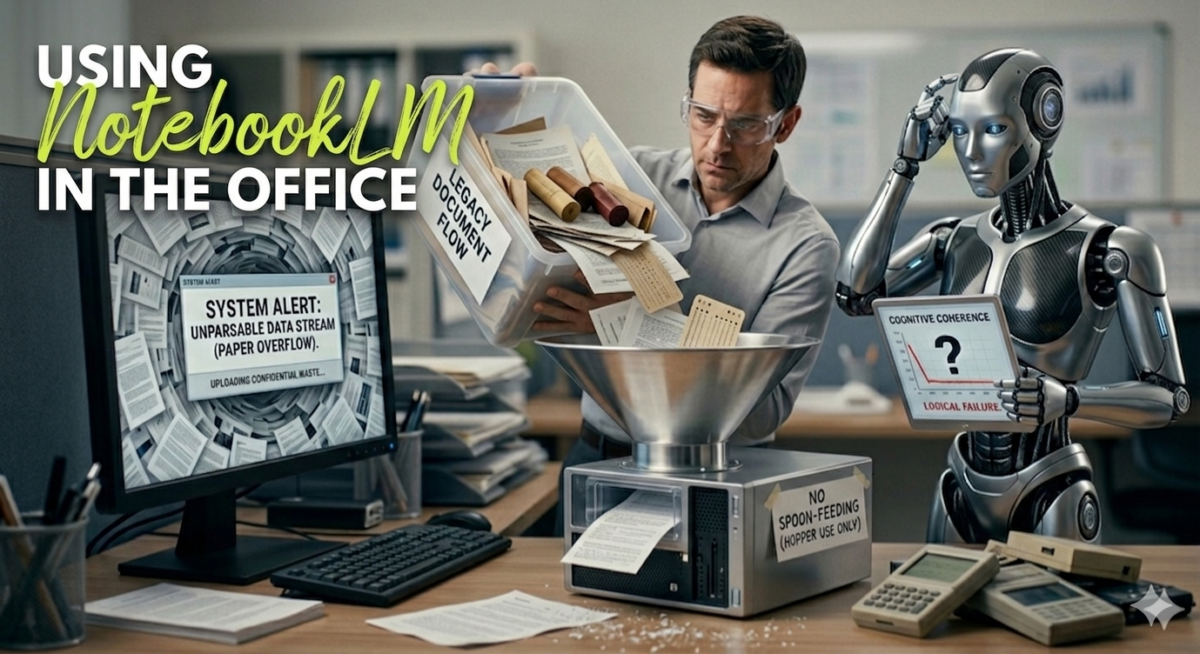
Using NotebookLM in the office

NotebookLM: The AI Tool That Actually Reads Your Boring Documents So You Don’t Have To

You know that pile of documents sitting in your Google Drive right now? The ones you fully intended to read? The 47-page strategy report from Q3. The onboarding handbook you skimmed on your first day and never opened again. The meeting transcript from that two-hour call where someone finally decided to write everything down, and now the document is longer than the actual meeting.

Yeah. Those documents.

What if I told you there’s a free tool from Google that will read all of them for you, understand them, and then let you have a conversation about them — like a colleague who actually did the reading?

Meet NotebookLM.


So What Even Is This Thing?

NotebookLM is a free AI tool from Google (you can find it at notebooklm.google.com — go on, open a tab). The basic idea is simple: you give it your documents, and it becomes an expert on those specific documents.

This is the key difference between NotebookLM and the regular AI chatbots you might already know. When you ask ChatGPT something, it answers based on everything it was trained on — the whole internet, basically. When you ask NotebookLM something, it answers based only on what you gave it.

Why does that matter? Because it means the answers are grounded in your stuff. Your company docs, your reports, your notes. It’s not guessing or making things up from general knowledge. It’s working from the actual source material you provided.

For office workers, this is kind of a big deal.


Let’s Talk About What It Actually Does

You Upload Stuff, Then You Ask Questions

The workflow is beautifully simple. You create a “notebook” (hence the name, clever right?), you upload your documents — PDFs, Google Docs, copied text, even YouTube links and website URLs — and then you start asking questions.

It accepts up to 50 sources per notebook, and each source can be up to 500,000 words. So yes, you can throw the entire history of your company’s internal documentation at it and it will not complain. Unlike your intern.

Once your sources are in, you can ask things like:

  • “What were the main conclusions of this report?”
  • “Summarize the key action items from these meeting notes.”
  • “What does this contract say about payment terms?”
  • “Are there any contradictions between these two policy documents?”

And it answers. With citations. Actual citations, pointing back to the exact part of the document it pulled the answer from.

You can click those citations and it takes you right to the source. This means you’re not just trusting the AI blindly — you can verify. Which, if you work in any kind of professional environment, is very much appreciated.


The Part Where I Tell You About the Podcast Feature and You Don’t Believe Me

Okay. Deep breath.

NotebookLM has a feature called Audio Overview. You click a button. It takes your documents. And then it generates a podcast — like, an actual podcast with two AI hosts — discussing the content of your documents in a conversational way.

I know. I know what you’re thinking. And yes, it actually works.

It sounds like two real people having a genuine back-and-forth about whatever you uploaded. They ask each other questions, they add context, they even do that thing where one of them goes “that’s a really interesting point” in a way that somehow doesn’t sound completely robotic.

Now, is this useful for office work? Surprisingly, yes.

Imagine you have a long report you need to understand before a meeting tomorrow, but you also have to cook dinner, pick up the kids, and pretend to go to the gym. You generate the audio overview, you put your earbuds in, and you listen to a podcast about your actual documents while doing something else entirely.

You arrive at tomorrow’s meeting having actually absorbed the key points. Your colleagues are impressed. You say nothing. You just nod knowingly.


Real Office Scenarios Where This Thing Shines

The “I Have to Read This Entire Contract” Situation

Legal documents are the worst. They are long, they are dense, and they seem to be written by people who are physically allergic to plain English.

Upload the contract to NotebookLM. Ask: “Explain the key obligations on our side in plain language.” Or: “Are there any clauses here that could be a problem for us?”

You still get your lawyer to sign off on the important stuff (please do that), but at least you show up to that conversation actually knowing what’s in the document. Points for professionalism.

The “We Have Three Years of Meeting Notes and Nobody Knows Anything” Situation

This one is painfully common. Organizations accumulate documents the way offices accumulate branded pens — constantly, mindlessly, and with no real system.

Upload all those meeting notes into a notebook. Now you can ask: “What decisions were made about the website redesign project between January and March?” or “Who was supposed to handle the supplier contract renewal?”

Suddenly your organization’s institutional memory is actually accessible. Which is, if we’re being honest, not something most companies can say.

The “New Hire Who’s Drowning in Onboarding Docs” Situation

Remember your first week at a new job? You got handed approximately 400 documents, told to “read through these,” and then left alone with your thoughts and a very complicated org chart.

With NotebookLM, a new employee can upload all the onboarding materials and just… ask questions. “What’s the process for submitting expenses?” “Who do I contact for IT issues?” “What does this acronym mean?” (Every company has at least seventeen internal acronyms that nobody explains to anyone. Ever.)

It’s like having a patient colleague available 24/7 who has read every single document and won’t judge you for asking the same question twice.

The “I Have to Present This Research and I Barely Understand It” Situation

You’ve been given a stack of reports to turn into a presentation. The reports are full of data, analysis, and conclusions that are each individually understandable but somehow add up to a confusing mess.

Upload everything to NotebookLM. Ask it to identify the three most important takeaways. Ask it what the data actually suggests. Ask it to explain the parts you didn’t follow. Then use that to build your presentation like the confident, prepared professional you now appear to be.


The Study Guide Thing (Yes, Even for Work)

NotebookLM can auto-generate a few things for you from your source material: a summary, a list of key topics, suggested questions to explore, and a study guide with FAQs and a glossary.

Now, “study guide” sounds very school-ish, I know. But think about what that actually is: a quick-reference document that explains the key concepts from your source material, defines the important terms, and anticipates the questions someone might have.

For work, that translates to: briefing documents, quick-reference sheets for your team, onboarding summaries, pre-meeting prep notes.

It builds these in one click. The study guide for a 60-page report takes about 30 seconds to generate. The same thing done manually takes… let’s not even go there.


What It Won’t Do (Let’s Keep It Honest)

NotebookLM only knows what you tell it. It has no knowledge of the outside world, no access to the internet (unless you give it URLs as sources), and no awareness of anything that isn’t in your notebook.

So if you ask it “What’s the current market share of our top competitor?” and you haven’t uploaded any competitive analysis documents, it will tell you it doesn’t know. Because it doesn’t. And honestly? That’s a feature, not a bug. You always know exactly where the answer is coming from.

Also, the audio podcast feature, while genuinely impressive, is not going to replace an actual expert explaining things to you. It’s a good overview. It’s not a consultant. (Speaking of consultants — hi, I’m available.)

And one more thing: like all AI tools, it can occasionally get things slightly wrong or miss nuance. Use the citations. Click through. Verify the stuff that matters. Don’t skip that step.


How to Get Started Without Overthinking It

Here’s your no-pressure plan:

Step 1: Go to notebooklm.google.com. Sign in with your Google account. It’s free.

Step 2: Create a new notebook. Give it a name. Something descriptive like “Q1 Reports” or “Project Phoenix Docs” or honestly just “stuff” — NotebookLM doesn’t judge.

Step 3: Upload one document. Something you’ve been meaning to read but haven’t. A report, a policy doc, a long email thread you saved as a PDF.

Step 4: Ask it one question about that document.

Step 5: Be mildly amazed.

That’s it. You don’t need to set up anything complicated, connect it to other tools, or watch a two-hour tutorial on YouTube. Upload a document, ask a question. That’s the whole thing.


The Bottom Line

NotebookLM is one of those tools that sounds gimmicky until you actually use it, and then you wonder how you managed without it. It’s not trying to replace your brain or your judgment. It’s trying to handle the part of your job that involves wading through large amounts of text to find the information you actually need.

And let’s face it — most office jobs involve a lot of wading through large amounts of text.

So let the AI do the wading. You focus on the actual thinking, the decisions, the relationships, the creative stuff. The parts that actually need a human.

The 47-page Q3 strategy report can wait. NotebookLM’s got it covered.


💡 Pro Tip: Connect Google Drive and Keep It Fresh

Here’s a little bonus that most people miss. When you add a source directly from Google Drive — instead of uploading a PDF or pasting text — NotebookLM treats it as a live source.

That means if the document gets updated, NotebookLM knows about it. You just hit “sync” and the notebook refreshes with the latest version. No re-uploading, no starting over, no accidentally working from a document that’s three versions out of date.

For anything that changes regularly — a running project log, a shared team doc, a client brief that keeps getting revised — this is genuinely useful. Connect the Google Drive version once, and your notebook stays current automatically.

It’s a small thing, but once you start using it, going back to static uploads feels weirdly old-fashioned. Like sending a fax. Not that any of us still do that. Right? …Right?


Shay Stibelman is a digital marketing consultant based in Milan, Italy. He helps small and medium businesses get their digital act together — websites, strategy, tools, and the occasional existential crisis about whether to switch to a new CRM.

AI in Your Office? Yes, You Can Do This (Even If You’re Not a Tech Person)

Okay, so you’ve been hearing about AI for a while now. It’s everywhere. Your colleague keeps talking about it, LinkedIn is full of people claiming it changed their life, and your boss just sent a company-wide email about “embracing new technologies.” Sound familiar?

Here’s the good news: you don’t need to be a developer, a data scientist, or some kind of robot whisperer to actually use AI at work. You just need to know where to start.

So let’s start.


What Even Is AI in This Context?

Before we get into the tools, let’s clarify one thing. When we talk about AI for office work, we’re not talking about building robots or writing code. We’re talking about tools you can open in your browser, type something into, and get useful stuff out of.

Think of it like this: you’ve been Googling things for years, right? Using AI tools is not that different in spirit. You ask, it answers. The difference is that it actually understands what you’re asking — context, nuance, and all.

The most popular ones right now? ChatGPT, Claude (that’s Anthropic’s one), Gemini, Copilot. They’re all in the same family. Pick one and get going. You can always explore the others later.


Let’s Talk About What You Actually Do All Day

Here’s a little exercise. Think about the last three hours at work. What did you spend time on?

Writing emails? Summarizing meeting notes? Trying to figure out how to word that awkward message to a client? Looking something up and then spending 40 minutes in a Wikipedia rabbit hole?

Yep. That’s where AI comes in. And spoiler: those are exactly the kinds of things it’s best at.


Writing Emails (The AI Superpower Nobody Tells You About)

Let’s start with the obvious one, because it’s genuinely life-changing once you get used to it.

How much time do you spend staring at a blank email, trying to figure out how to say something that’s either awkward, sensitive, or just plain boring to write? If you’re like most people, a lot.

Here’s what you do instead: open your AI tool of choice, and just describe the situation out loud (or in writing, obviously). Something like:

“I need to write an email to a client who paid late again. I want to be firm but not rude. The invoice was 30 days overdue.”

Done. It gives you a draft. You read it, tweak it a little if you need to, and send. What used to take 20 minutes of internal debate now takes 3.

The key thing here is to not overthink the prompt. Talk to it like you’d talk to a helpful colleague. The more context you give it, the better the output.


Summarizing Stuff You Don’t Have Time to Read

Raise your hand if your inbox is a war zone. (All hands raised, I assume.)

Now add to that the PDFs, the reports, the long Slack threads, the meeting follow-up docs that are somehow 8 pages long for a 30-minute call.

AI is fantastic at taking long content and turning it into the three things you actually need to know. You paste the text in (or in some tools you can upload the file directly), and ask it to summarize. Or to pull out the action items. Or to tell you the three most important points.

This is not cheating. This is called working smart. Your grandparents called it “reading the executive summary first.” You’re just doing the same thing with a tool.


Meeting Notes? Let Someone Else Handle That

If you’ve ever been in a meeting while simultaneously trying to take notes, you know the problem: you can’t really do both well at the same time. You either miss what’s being said, or your notes are so disjointed they’re useless later.

Tools like Otter.ai, Fireflies, and Notion AI (if your team uses Notion) can record and transcribe your meetings automatically, and then summarize them for you. Action items, key decisions, who said what — all done.

Some of them even integrate directly with Zoom or Google Meet, so the whole thing is basically hands-off. You just… show up to the meeting and participate. What a concept.


Research Without the Rabbit Hole

Ever had to look something up for work and ended up 45 minutes later reading about the history of some completely unrelated thing? Yeah. The internet is a weird place.

AI can help here too. Instead of searching and then filtering through ten tabs, you can ask directly: “Explain how interest rates affect real estate prices in simple terms” or “What are the main differences between B2B and B2C sales approaches?”

You get a clear, direct answer. No ads, no clickbait headlines, no sponsored content trying to sell you something.

Now, a word of caution here: AI tools can sometimes get things wrong. They can confidently state something that’s slightly inaccurate or outdated. So for anything that actually matters — numbers, legal stuff, medical information — always double-check with a reliable source. Think of the AI as your first stop, not your final answer.


Creating Documents, Presentations, and Templates

Blank page syndrome is real, and it’s deeply unpleasant.

Whether you need to write a project brief, draft a proposal, build a presentation structure, or create a standard template for your team, AI can give you a solid first draft in seconds. And working from a draft — even an imperfect one — is infinitely easier than starting from nothing.

Try something like: “Create a simple project brief template for a small marketing campaign, including sections for objectives, target audience, budget and timeline.”

Boom. You’ve got something to work with.

Then you go in, customize it to your actual situation, and suddenly that thing that would have taken you an hour takes you 15 minutes. And you don’t have that specific kind of exhaustion that comes from staring at a blank document.


The Things AI Is Not Great At (Yet)

Alright, let’s keep it real for a second, because this stuff isn’t magic.

AI is not great at making judgment calls that require human context. It doesn’t know your company culture, it doesn’t know that your client is going through a rough patch and needs extra sensitivity, and it doesn’t know that your boss hates the word “synergy” with a passion.

It also doesn’t always know what’s happened recently in the world, depending on which tool you’re using and when its knowledge was last updated. So for breaking news or very current events, go to an actual news source.

And please, for the love of everything — don’t paste confidential company information into a free AI tool without checking your company’s policy on this first. Many companies have guidelines about what can and can’t go into external AI systems. Check before you paste.


Okay, Where Do You Actually Start?

Here’s a simple, no-stress plan for your first week with AI at work:

Day 1: Sign up for one tool. ChatGPT or Claude — both have free tiers, both are good. Don’t try three at once. Pick one.

Day 2: Use it to rewrite one email you’d normally agonize over. See how it feels.

Day 3: Paste in a long document or article and ask it to summarize it for you.

Day 4: Ask it to create a template for something you make regularly — a status update email, a meeting agenda, whatever.

Day 5: Just talk to it. Ask it to explain something you’ve never quite understood about your industry. You’ll be surprised.

By the end of the week, you’ll have a pretty good feel for what it can and can’t do, and you’ll start noticing other places where it fits into your workflow naturally.


One Last Thing

The people who get the most out of AI tools are not the ones who are the most tech-savvy. They’re the ones who are the most curious. The ones who experiment a little, ask weird questions, try things out without worrying about doing it “wrong.”

There’s no wrong way to use these tools. The worst that can happen is you get a bad answer and you try again with a better question. That’s it.

So go on. Sign up for something, ask it something, and see what happens.

Oh, and if your colleague is still emailing you 8-paragraph replies to simple yes/no questions? Maybe forward them this article.